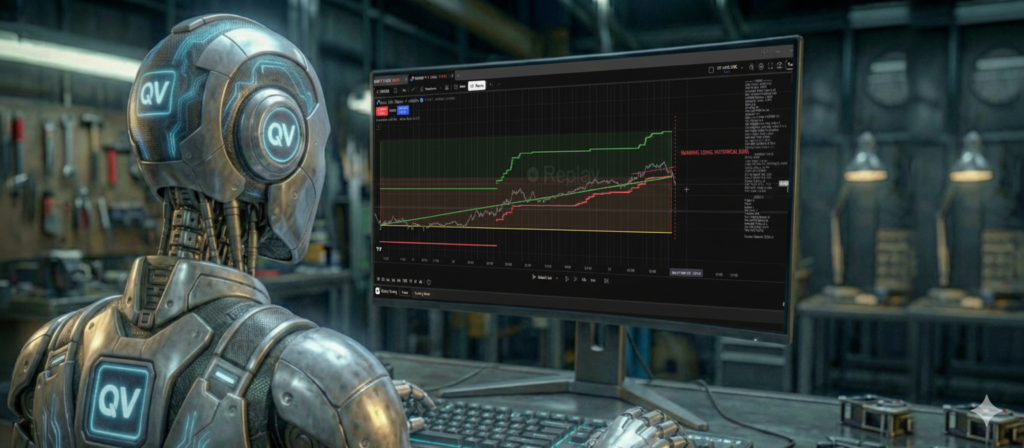
In Part 2, we discussed how the QuantView Framework separates the “Brain” (Strategy) from the “Muscle” (Execution). Today, we are going to look at the engine that powers both: Time Emulation.
If you have spent any time trading on platforms like TradingView, you are likely familiar with the “Timeframe Dilemma.”
• The Granularity Problem: If you trade on a 1-minute chart, you get precise entries, but the noise is overwhelming, leading to false signals.
• The Lag Problem: If you trade on a 1-hour chart to filter out noise, you are forced to wait. If a move starts at 10:05, you often have to wait until 11:00 for the candle to close before your indicator confirms the signal. By then, the move might be over.
Most traders try to solve this with “Multi-Timeframe” (MTF) indicators. But these often suffer from repainting—where a signal appears during the hour and disappears when the candle finally closes.
QuantView solves this with a proprietary engine we call Time Emulation.
The “Emulated Time” Engine
The QuantView Framework fundamentally separates the Chart Time (what you see) from the Calculation Time (what the math uses).
In our free demo, QV with MA Crossover, you are instructed to load the strategy on a 1-minute chart. However, in the settings, you tell the Framework to “Emulate” a higher timeframe—for example, 15 minutes.
This is where the magic happens. Unlike standard indicators that simply look at the “Current 15-Minute Candle” (which is still open and changing), QuantView builds a custom history database (g_history) inside the code. It aggregates the data from your 1-minute chart to construct its own reality.
The “Rolling Window”: A New Candle Every Minute
This is the most critical distinction to understand about QuantView.
In a standard system, a 15-minute candle opens at 10:00 and closes at 10:15. You get one update every 15 minutes.
In QuantView, we use a Rolling Window. If you are emulating 15 minutes on a 1-minute chart, the Framework doesn’t wait for the clock to strike :00, :15, :30, or :45. Instead, every single minute, the system generates an entirely new set of fully closed-out 15-minute candles.
• At 10:05: The system looks at the data from 9:50 to 10:05. It treats this 15-minute block as a single, closed candle.
• At 10:06: The system looks at the data from 9:51 to 10:06. It treats this as a new, closed 15-minute candle.
Why is this revolutionary? You are getting the stability of a 15-minute strategy, but you are getting 60 trade opportunities per hour instead of just 4.
You are not just updating the most recent candle; you are effectively sliding a 15-minute window across the market, minute by minute. This allows the strategy to detect a trend shift the moment it becomes mathematically valid, rather than waiting for an arbitrary clock time to confirm it.
Unlimited Flexibility
While we use 15 minutes as a common example, the QuantView Framework is not limited to standard intervals. Because we build the history manually from the base data, you can emulate almost any timeframe you need to fit your strategy.
The QV with MA Crossover allows you to select from a wide range of emulated periods:
• Scalping: 1, 2, 3, or 5 minutes.
• Swing Trading: 10, 15, 30, 45, or 60 minutes.
You can run a strategy that looks for “45-minute trends” while executing on a 1-minute chart for “1-minute precision.”
The “No Repaint” Promise
Repainting is the silent killer of automated strategies. It happens when a script looks at an open higher-timeframe candle. The indicator might say “Buy” at 10:10, but if the price drops by 10:15, the “Buy” signal disappears from history.
QuantView eliminates this. Because our “Rolling Window” treats every passed minute as a completed block of history, the data used for calculation is always closed and confirmed.
• If the Moving Average crosses over at 10:12 based on the emulated data from 9:57-10:12, that cross is locked.
• It will never disappear.
• It will never repaint.
This provides the “Intra-bar Precision” necessary for professional automation. You can trust that the backtest results you see on the chart match exactly what would have happened in live trading.
Try the Rolling Window Yourself
It is hard to appreciate the power of a rolling timeframe until you see it in action—watching a 1-hour trend strategy react instantly to market movements on a 1-minute chart.
We invite you to download the QV with MA Crossover demo. Open the settings, set your chart to 1 minute, and experiment with the “Emulated Time Period” input. Watch how the Moving Averages smooth out noise while still reacting nearly instantly to price action.
Download the Free QV with MA Crossover Demo Here
Now that we have accurate, stable time, we need to manage the money. In Part 4, we will look at QuantView’s Management features, including the sophisticated “Break Even” triggers and sliding stops that protect your capital automatically.